
Bloom 1.5.50 — download for Mac
Utilities Updated
Manages files with undo support and quick folder navigation.
Screenshot
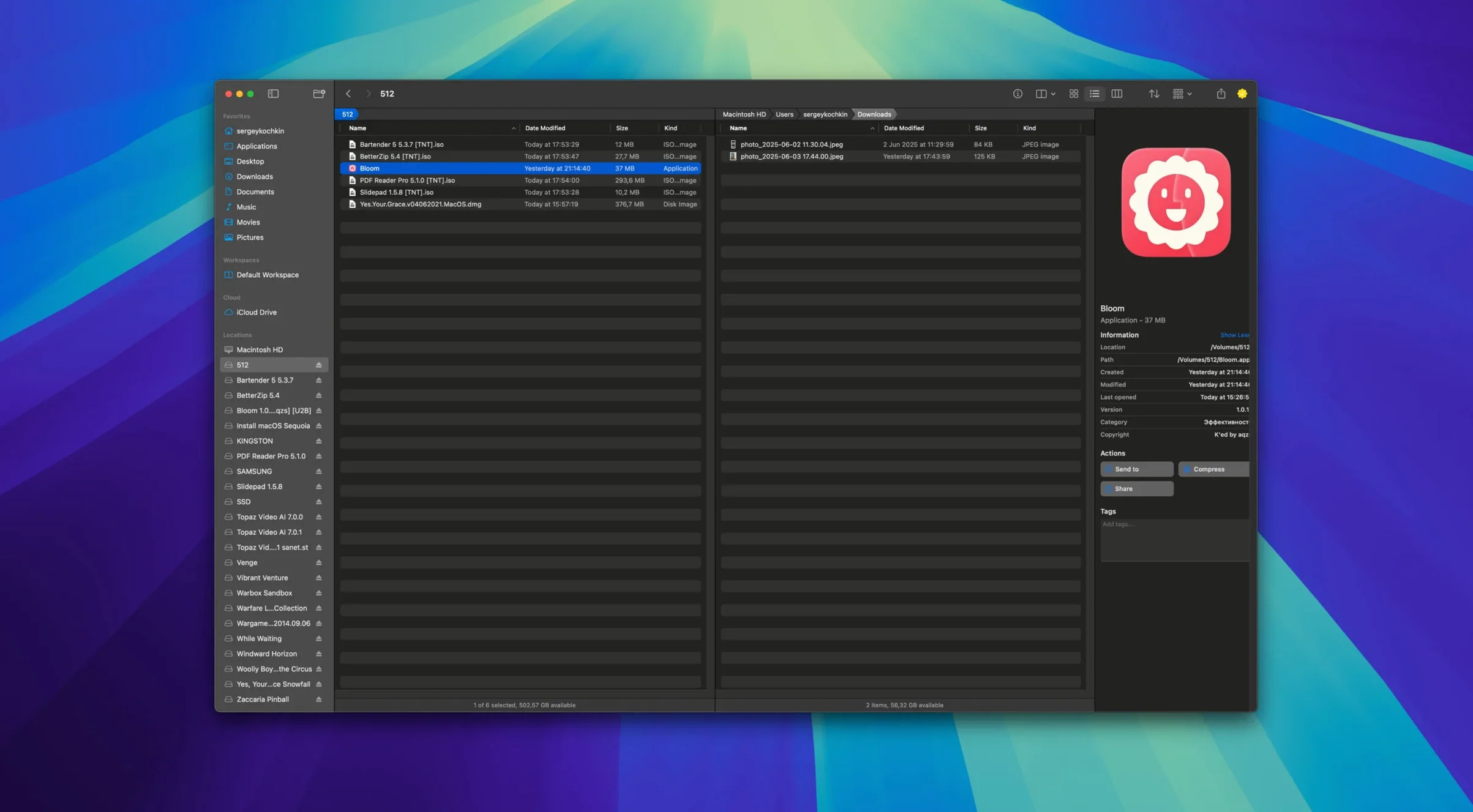
Bloom requires macOS 14 and runs natively on both Apple Silicon and Intel hardware. It replaces the daily grind of Finder with a set of tools built for people who move through folders quickly and need to see what they are dealing with.
Features that change the workday
- Undo for every operation. Move a folder to the wrong place or delete a set of files, and Bloom records the action. One step back, no damage done.
- Archive preview without extraction. Peek inside a zip or tarball directly in the browser. You save the time of unpacking just to check contents.
- Treemap disk scanning. Scan any folder and see a colored block map of what is eating space. Large files stand out immediately.
- Portal mode. A compact single-panel window with no sidebar, no preview. Useful when you need a second file view next to your main workspace.
- Terminal launcher. Open a shell session pointed at the current folder without typing a cd path.
Navigation built for speed
Column widths adjust automatically so long file names stay readable. Press ⌘⇧⏎ to jump straight to a system location. These small mechanical improvements add up when you spend hours managing project directories, asset folders, and document trees. Bloom does not redesign file management; it removes the friction that Finder leaves in place.
Small conveniences that reward exploration
Some of Bloom’s most useful features are not the kind that appear in a feature list. They are the quiet mechanical details that save you from reaching for another tool. When you preview a text, image, or PDF under 10 MB, Bloom opens it inline. No full-screen viewer, no app switch. For a project manager who keeps reference PDFs and screenshots in the same folder, that is a regular time save.
Search works directly inside a folder with ⌘F. If the results do not match what you expect, ⌘R refreshes them without restarting the search. It is a small loop, but when you are hunting for a versioned filename across a directory tree, it keeps your hands on the keyboard and your eyes on the list.
Tag management is another feature that does not announce itself. You can assign and filter by tags without leaving the file list. For teams that use macOS color labels or custom tags, this turns Bloom into a lightweight asset manager for a project folder that holds dozens of reference images and specification sheets.
Automatic column resizing sounds trivial until you open a folder with long file names and every column fits without manual dragging. On a MacBook screen, where horizontal space is precious, this keeps the file list readable without wasting a click on layout.
iCloud Drive as a first-class location
Bloom treats iCloud Drive as a first-class location. If you store shared project documents in iCloud, you can navigate, search, and rename them inside Bloom just like local files. The same undo stack applies, so an accidental move inside a synced folder is still recoverable.
The Portal mode offers a compact window without sidebar or preview. You can pin it above other windows or dock it at the screen edge. This works well alongside a main Bloom window or Finder. Keep one Bloom window open for your active project folder and pin a second Portal window showing your downloads folder or a shared team directory. The two views do not interfere, and you can drag files between them.
Launching Terminal from any folder is a direct integration with the macOS command line. If you need git operations, a one-line script, or a quick rsync, the terminal opens at the exact path you are browsing. No more dragging a folder into the Terminal icon or typing cd paths from memory.
For image work, Bloom can convert and optimize files, or insert images from the internet. These are not replacements for a dedicated graphics tool, but they save you from opening Preview or a browser for a routine resize or format change. When you are organizing a batch of project screenshots, it keeps the context inside the file manager.
v1 through v6 in a design lead's week
A design lead at a branding studio needs to collect final assets from a week of client revisions. The client sent feedback via email, and the folder now holds subdirectories for six rounds: v1 through v6, each with a mix of PNG exports, AI source files, and PDF annotations.
Instead of opening each subfolder in Finder to count files, the lead uses Bloom’s treemap view on the parent folder. The v6 block is clearly larger than the others, so that is where the latest revisions live. Inside v6, a quick ⌘F search for final returns the approved PNGs. The lead selects them, uses Bloom’s convert and optimize tool to downsize them for email, and tags them approved so the developer can filter later. The whole sequence stays inside one application. No Finder, no Preview, no separate image tool.
Bloom 1.5.50 is available now. The developer’s release notes detail the changes included in this update.
| macOS | macOS 14 or later |
|---|---|
| Processor | Apple Silicon, Intel 64-bit |
| Download | 19 MB |
- macOS 14 or later
- Apple Silicon or Intel 64-bit processor
Questions about Bloom
Can I preview compressed files in Bloom without extracting them?
Yes, Bloom lets you browse the contents of archives like zip or tarball files directly, without unpacking them first.
How to install, in order
- Mount the downloaded disk image.
- Drag the Bloom app icon onto the Applications folder shortcut.
- Open Launchpad and start Bloom from there.
Comments and corrections 0
Sign in or open a free account to leave a comment.
No comments or corrections yet.